
Tool Settings
Once a group has tools, you manage them from one place: the Group Tools tab of the group's settings.
Open the group's Settings (the gear button), then the Group Tools tab. You'll see every tool connected to the group, grouped by its status.
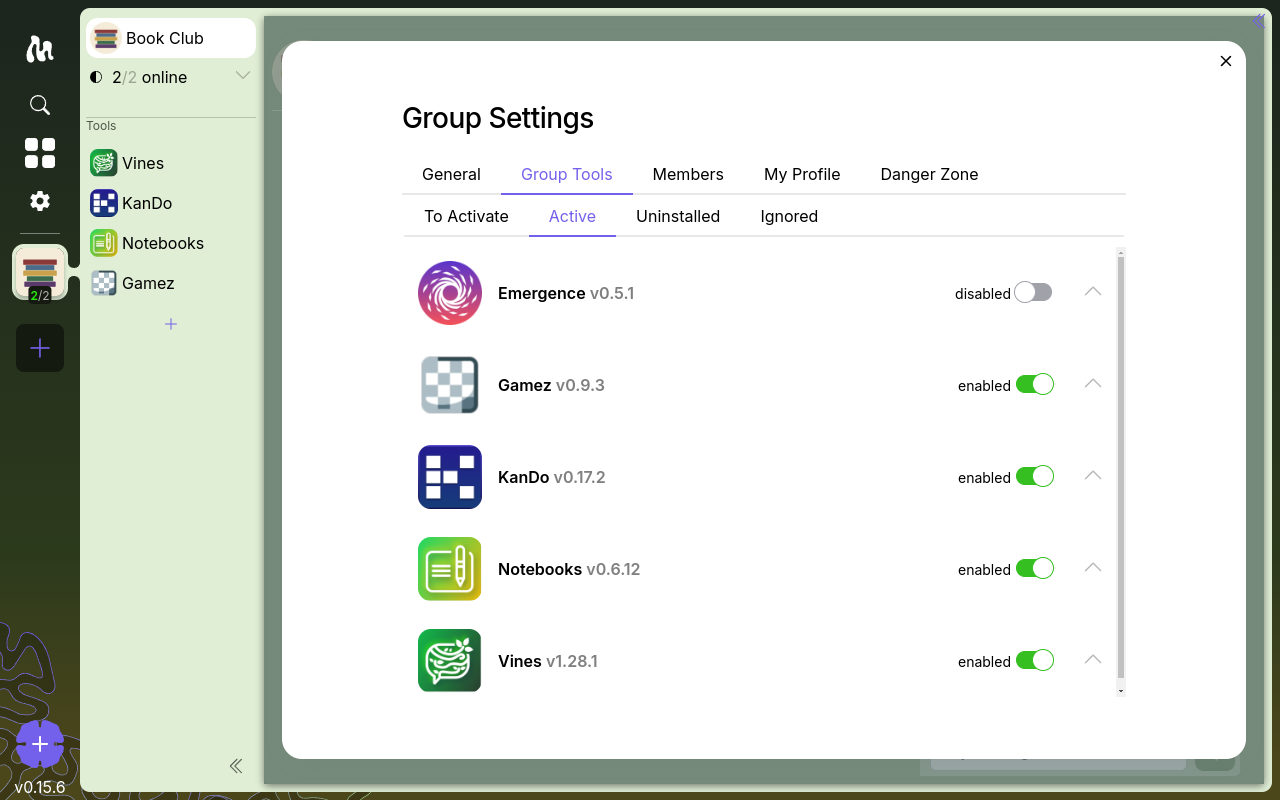
The four sub-tabs
The Group Tools tab is itself split into four sub-tabs, because a tool can be in one of several states for you specifically:
- Active — tools you have activated and are using in this group.
- To Activate — tools another member installed that you haven't activated yet. (See Adding Tools for what activating means.)
- Uninstalled — tools you used at some point and later uninstalled for yourself.
- Ignored — tools from To Activate that you've dismissed so they stop showing up.
A tool's status is personal. The same tool can be Active for one member and still sitting in another member's To Activate list.
Managing a tool
Each tool is shown as a card. Expand it to see who installed it to the group and which members currently have it activated. The actions available depend on the sub-tab and on your role:
Enable / disable
For an Active tool, a toggle turns it on or off for yourself. Disabling stops the tool running on your machine without removing it — flip it back on any time. This is the lightweight, fully reversible option.
Uninstall for me
Uninstall for me removes the tool from your own Moss — it moves to your Uninstalled sub-tab. Other members are unaffected; the tool instance lives on for them. Your data isn't destroyed, but treat this as a deliberate action rather than a quick toggle.
Deprecate for the group
Deprecate for Group is different from uninstalling: it's a group-wide signal, and only a Steward (or the member who installed the tool) can do it. Deprecating hides the tool from new members so they won't activate it; members already using it keep it, but see it marked as deprecated. It's reversible with Undeprecate, and it deletes nothing — it's a recommendation, not a removal.
Advanced settings
Each Active tool has an Advanced settings section. Most of it is for Stewards and developers:
- Always-online nodes — whether always-online nodes in the group should install this tool by default, so the group's data stays available even when members are offline.
- Dev UI override — lets a Steward swap in a tool's interface from a local
.webhappfile for testing. Everyday users won't need this.
Next
- Adding Tools — installing and activating tools
- Roles & Stewards — who can deprecate and change advanced settings