
Creating a Group
A group in Moss is a private peer-to-peer network. When you create a group, you're starting a new network. Anyone you invite joins that network and becomes part of the group.
Steps
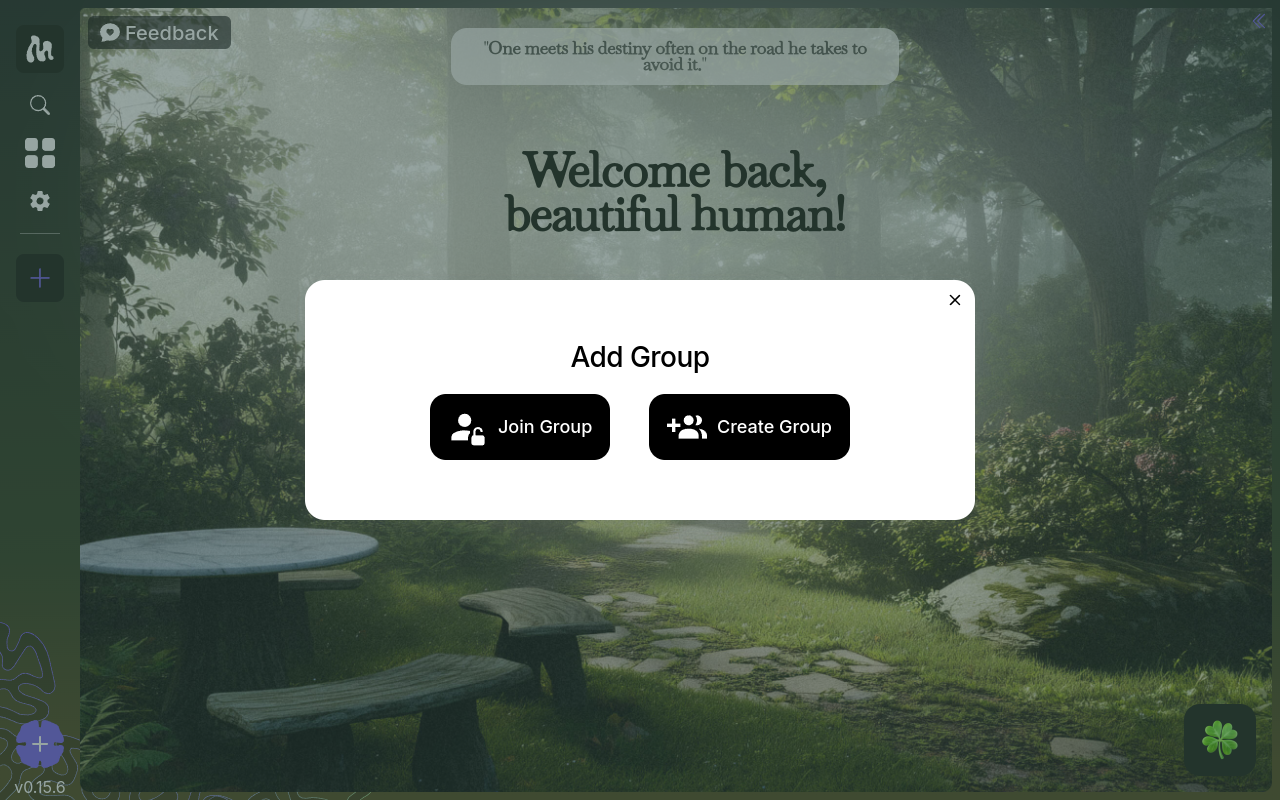
From the home screen, click the + button in the groups sidebar, then choose Create Group.
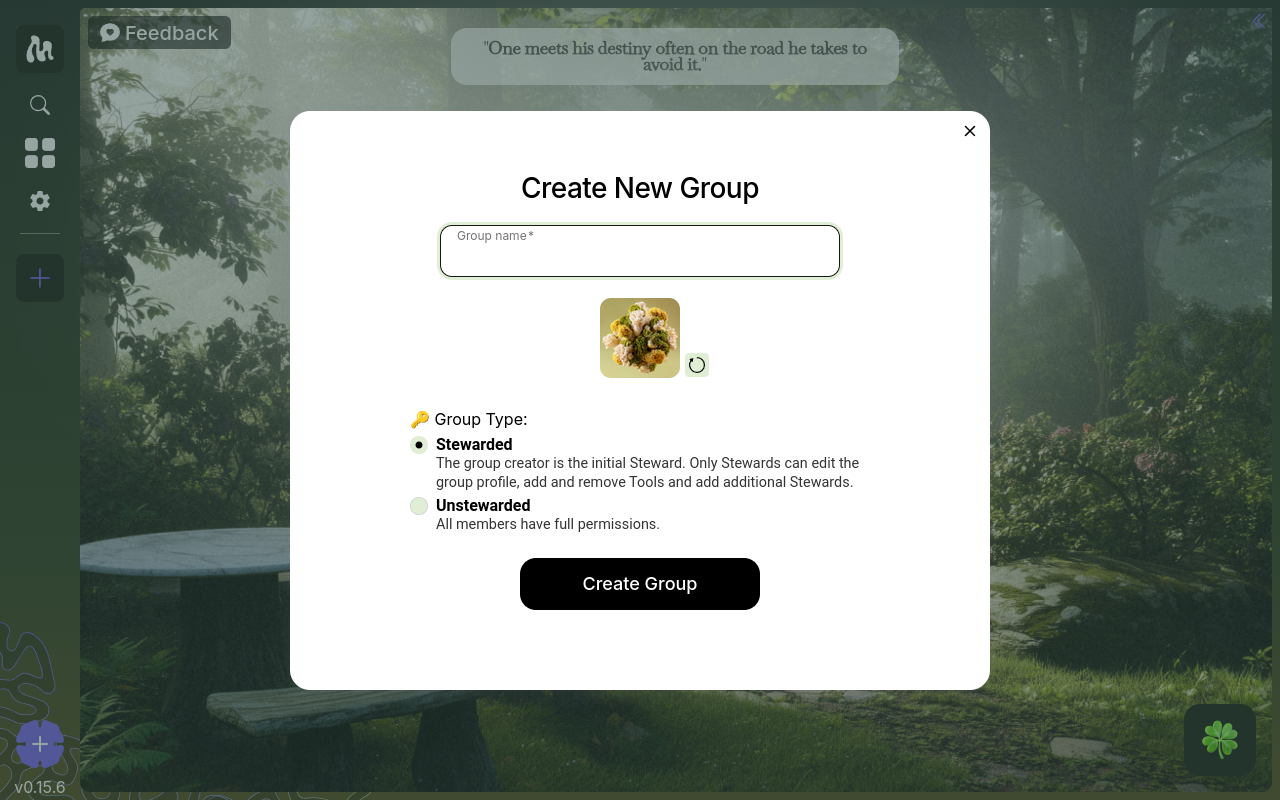
Give the group a name and icon, and pick a group type. The name and icon are visible to everyone who joins. The group type — stewarded or unstewarded — decides who is allowed to change the group, and it can't be changed later, so choose with care. See Roles & Stewards for what each type means.
Set your profile for this group. You can use a different display name and avatar in each group — your identity in one group is independent of your identity in another.
Create. Moss spins up the group's network on your device. You are now the first (and, for the moment, only) member.
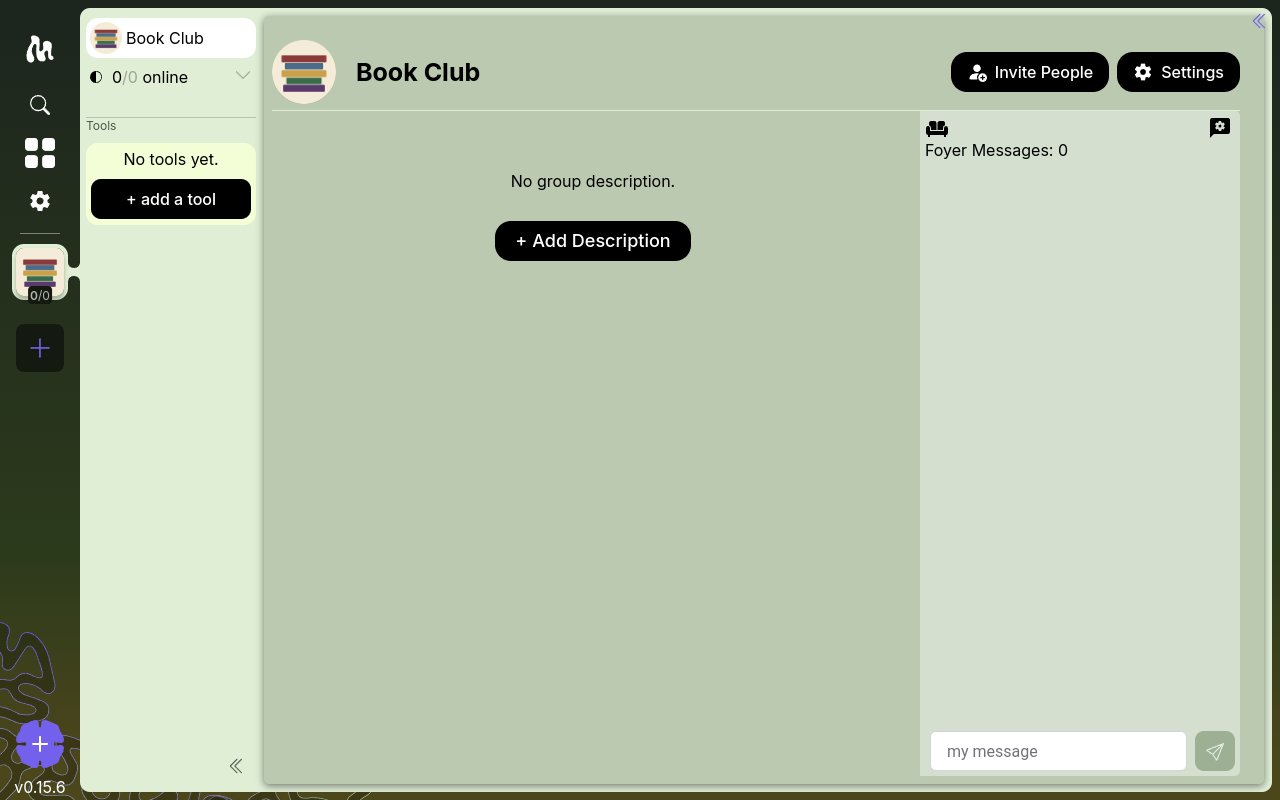
What exists at this point
- A new group with you as its sole member
- An invite link you can share with others (see Inviting Members)
- An empty space with no tools installed yet — that's the next step (see Adding Tools)
The group home dashboard
The group home is a dashboard you build out of tiles. It's the first thing newcomers see after they join, so it's the natural place for an overview — what the group is for, where to start, who to ask — alongside anything else worth surfacing. See The Group Home Dashboard for the full walkthrough.
The quickest start is a Markdown tile: click Edit group home (the pencil on the group home), add a Markdown tile, and write a short overview. Markdown gives you headings, lists, bold, italics, links, and the rest, so you can give it structure without leaving Moss.
A Steward (or the Progenitor) edits the dashboard; other members see it but can't change it. See Roles & Stewards for who can do what.
A group per context
Groups are cheap. If you're collaborating with two different circles of people — say, a book club and a work team — make two groups. Each gets its own private network, its own set of tools, and its own member list.
Leaving or deleting a group
- You can leave a group at any time from the group's settings. Your cryptographic key will no longer be able to sign new actions in that group.
- Deleting a group locally removes it from your Moss installation. It does not delete the group for other members — their copies continue independently.