
The Group Home Dashboard
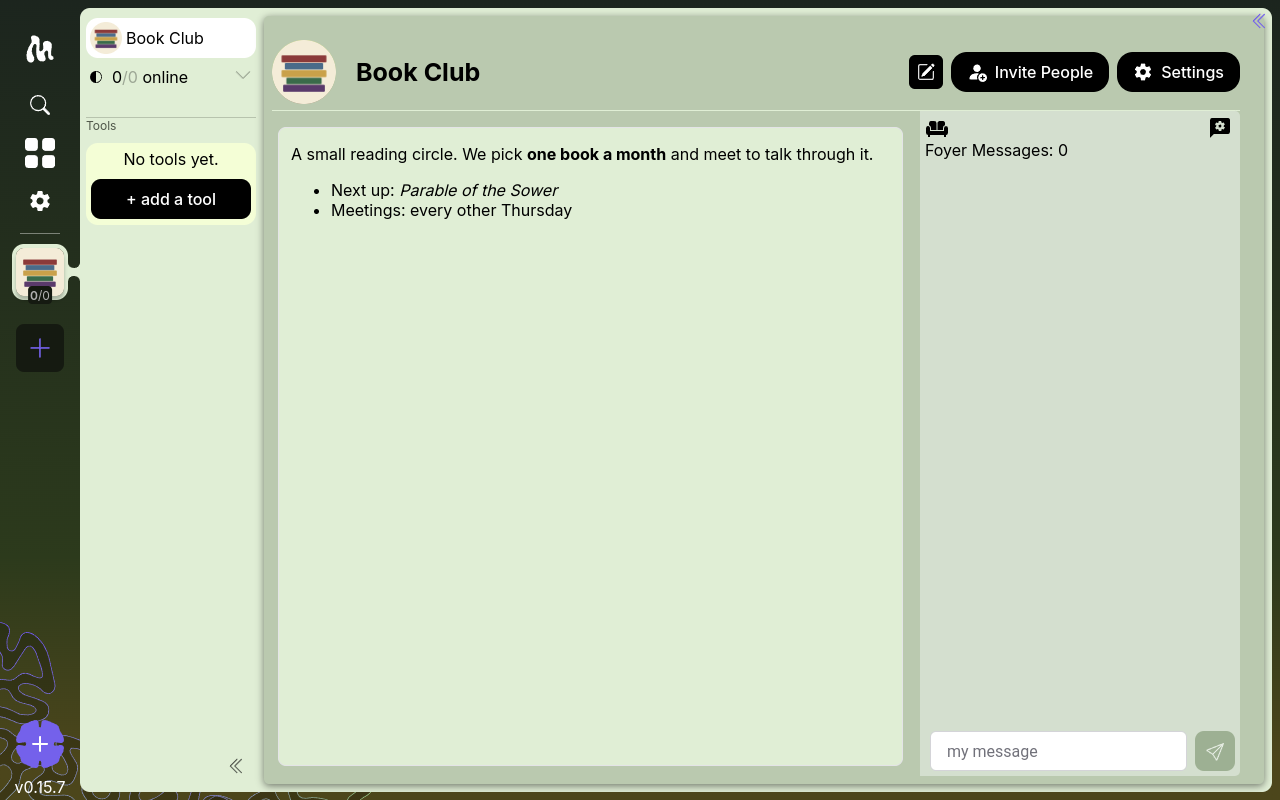
Every group opens to its group home — a dashboard assembled from tiles. It's the first thing a member sees when they enter the group, so it's where you put the things the group should see first: an overview of what the group is for, a key image, an embedded asset from one of your tools, or a link out to the web.
Who can edit it
The dashboard is shared by the whole group, so editing it is a Steward (or Progenitor) action — the same people who can change other group-wide settings. Everyone else sees the dashboard but can't change it. See Roles & Stewards for the full permission model.
If you're a Steward, you'll see an Edit group home pencil on the group home. Members who can't edit simply don't see it.
Editing the dashboard
- Click Edit group home (the pencil). The dashboard switches into edit mode and a floating palette appears.
- Drag a tile chip from the palette onto the board to add a tile. Fill in its contents, then confirm.
- Drag tiles to rearrange them, and drag their edges to resize. The board is a grid, so tiles snap into place.
- Click Save to publish your changes to the group, or Cancel to discard them.
Your saved layout is what every member sees.
Tile types
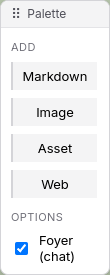
The palette offers four kinds of tile:
- Markdown — formatted text. Headings, lists, bold, italics, links, and the rest of Markdown. This is the natural place for a group overview or a "start here" note.
- Image — a picture, by URL.
- Asset — an embedded asset (a WAL) from one of the group's tools, rendered live right on the dashboard — a specific document, board, or other piece of content.
- Web — an embedded web page, by URL.
The palette also has a Foyer (chat) option, which allows you to disable the ephemeral-chat on the group home, if, for example, you prefer a Vines channel asset on the group-home for more full-featured persistent chat.