
Adding Tools
A fresh group is an empty space. You make it useful by adding tools. Tools are the apps you run inside a group — chat, documents, task boards, calendars, and so on.
The Tool Library
Moss tool library shows curated collections of tools you can browse and add to your group. In stewarded groups this capacity is only available to stewards, in unstewarded groups, all members can.
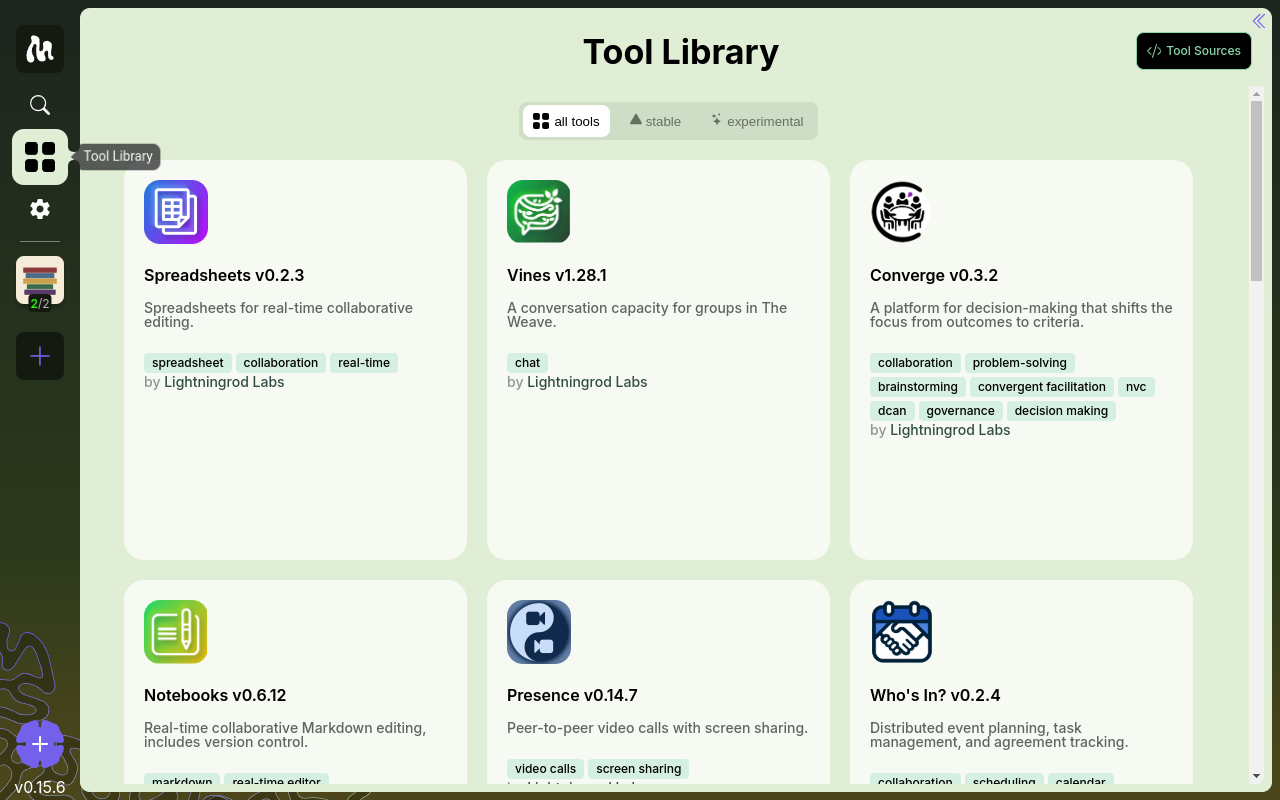
You can browse the main Moss tool library online at moss.social/tools to see what's available before installing anything.
Adding a tool
Open the group.
Click Add Tool (or the equivalent "+" in the group's tool bar).
Browse the library and pick a tool to see its details.
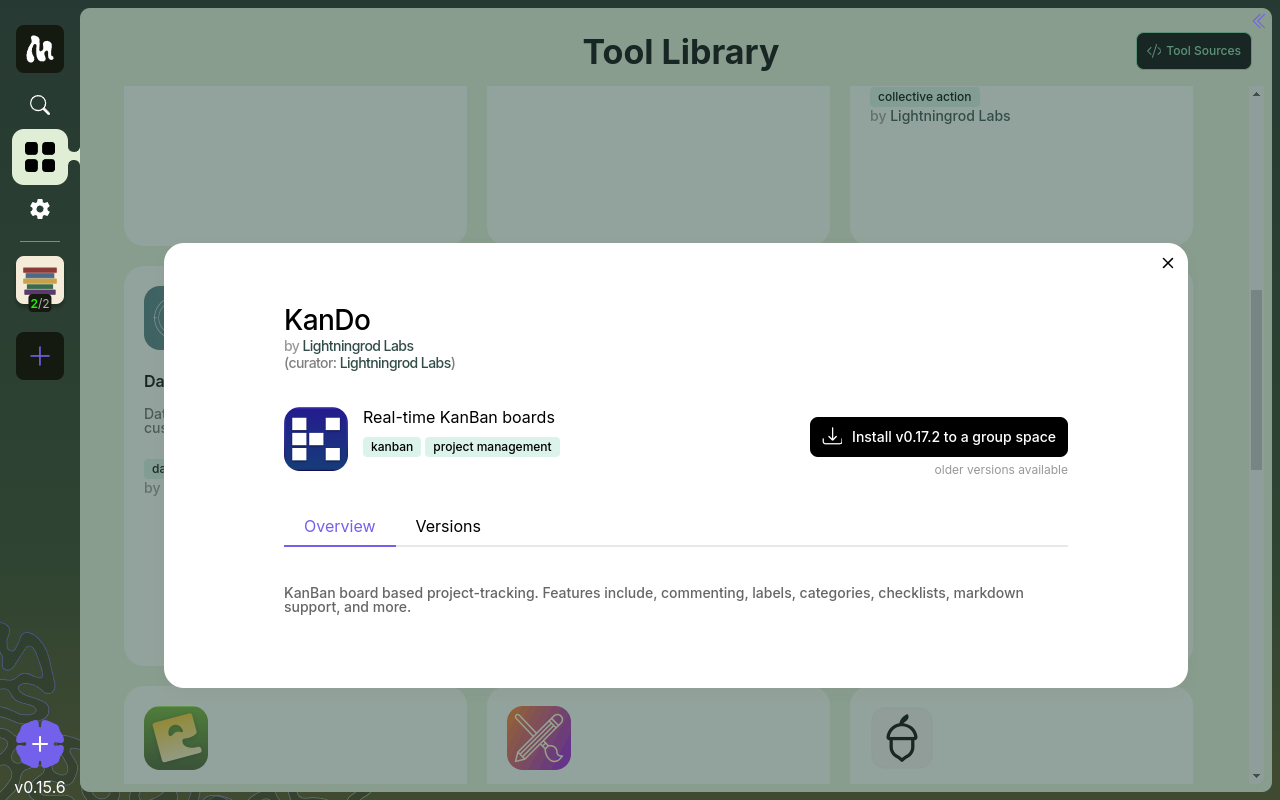
Give the instance a name. You can have multiple instances of the same tool in a group — e.g. two separate KanBan boards — and each gets its own name.
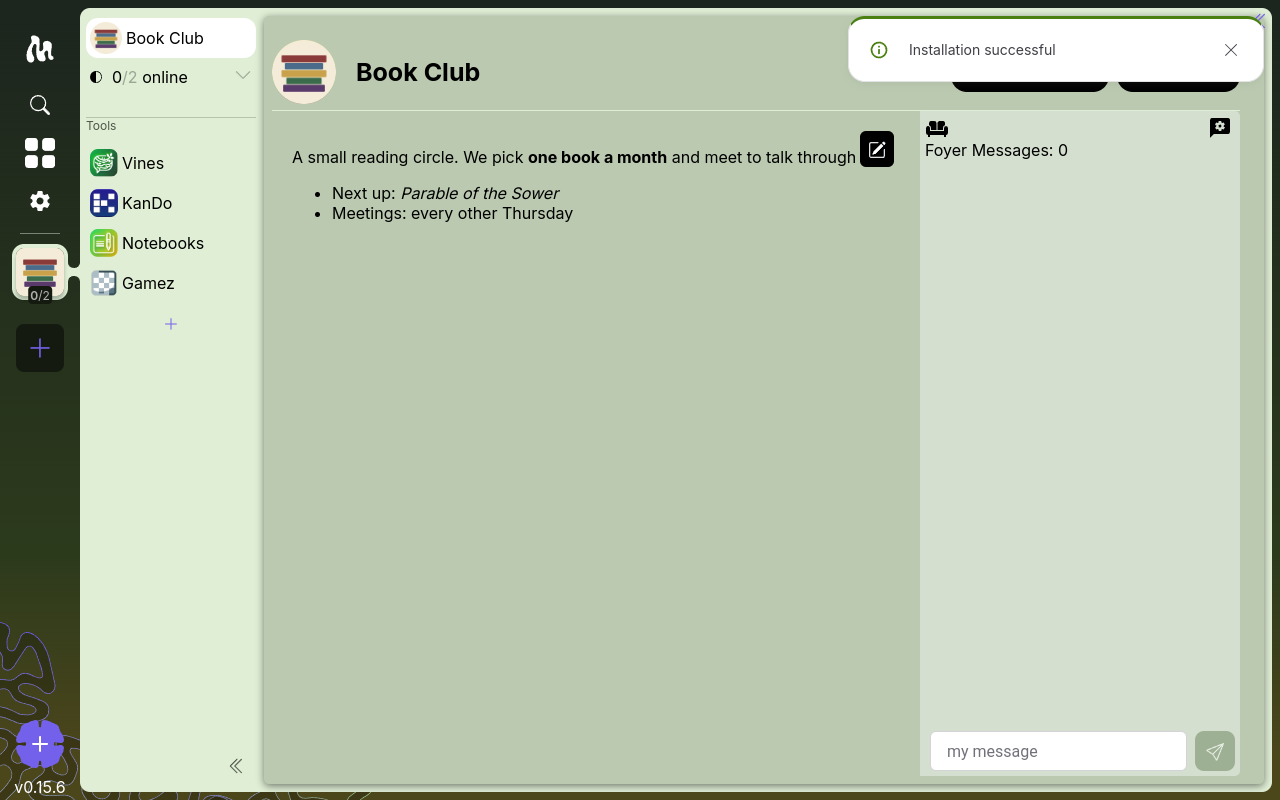
Install. Moss sets up the tool's network and UI for this group.
How tool instances work
When you add a tool, you create a tool instance — a named, running copy of that tool inside the group.
- Each instance is its own private peer-to-peer network, scoped to this group.
- You can have several instances of one tool. Two KanBan boards, three chat rooms — each is separate, with its own name and its own data.
- Uninstalling a tool removes it from your device. Other members' copies are unaffected; the instance lives on as long as anyone in the group still has it.
Installing a new instance vs. activating an existing one
This is a common point of confusion. Two things look similar but are not the same:
- Installing from the Tool Library creates a new instance — a fresh, empty network. Do this when the group needs a tool it doesn't have yet.
- Activating an instance a peer already made. When another member has installed a tool you don't yet have, Moss lists it in the group's tool sidebar as a dimmed entry. Click it to open the tool's details, then Activate to join the instance the others are already using — connecting you to their content, not making a new copy.
The group sidebar shows an entry for every tool present in the group, so you can tell at a glance what's available and what state it's in:
- Active — a tool you're running. Right-click it for actions, including Deactivate to turn it off.
- Dimmed (activatable) — a tool a peer registered that you haven't joined yet. Click to open its details and Activate.
- Dimmed (disabled) — a tool you installed locally but turned off. Click to Re-enable it.
The rule of thumb: if the group already has the tool instance you want, activate it from its dimmed sidebar entry. Installing a second copy from the library instead gives you a separate, empty network that the rest of the group isn't in — the two won't see each other's content.
Composing tools
This is where the Weave Interaction Pattern earns its keep: tools can link to each other's content. A chat message can reference a specific document. A task card can point at a calendar event. A dashboard can embed blocks from multiple tools.
Not every tool supports every kind of link. What's possible depends on the tools the group has installed and what they expose.
Updating tools
A tool has two parts: its UI — what you see and click — and its happ, the underlying network definition that holds the group's data. Which part changed determines what kind of update it is, and the two behave very differently.
UI-only updates
These change just the interface. The happ — and therefore the network and all your data — stays exactly the same.
Moss surfaces UI-only updates as in-place updates. They appear in the Software updates section on your home screen, one card per tool, each with an Update button. Click it and the tool reloads with the new interface. Nothing migrates; your data is untouched, and you don't have to wait for the rest of the group.
Updates that change the happ
Because the happ is the peer-to-peer network, a new happ is a new network — it can't be swapped in underneath your existing data. So Moss does not offer these as in-place updates.
Instead, a happ change is published as a separate version in the Tool Library. To move to it, the group installs it as a new tool instance, which starts with a fresh, empty network. The old instance and its data stay put until someone removes it, so the two can coexist while the group migrates.
This is why a happ update means the whole group has to move together: anyone who stays on the old instance is still on the old network and won't see activity in the new one.
How this looks in the Tool Library
A tool in the library can have multiple version branches. UI-only updates happen within a branch and reach you automatically as Software updates. A happ change starts a new branch — when older branches exist, the library notes "older versions available," and switching to a newer branch is an install, not an update.
Next
You now have the basics: a group, members, and tools. Explore the developer documentation if you want to build your own tool, or check moss.social for news and community.