
Moss Settings
Moss has two distinct Settings screens, and it helps to know which one is which before you go hunting for an option.
This page is about the app-level Moss Settings — opened from the gear icon in the left sidebar. It controls preferences for Moss as a whole, on your device. Each group has its own separate Settings (the gear in the group's top bar) — those are covered in the Groups section, since they only affect that group.
The tabs at a glance
The Moss Settings dialog has five tabs across the top: Profile, Language, Notifications, Feedback, and Danger Zone. Most of them get their own page in this guide; the short version below points you to the right one.
Profile
Your global default profile — a display name and avatar that Moss uses as a starting point when you join a new group. It lives on your device and isn't shared with any group directly.
See Your Profile for how this default relates to the per-group profile each group sees.
Language
Pick the language Moss uses for its own UI. Switching here only changes Moss's chrome — menus, dialogs, settings, group home — not the content of any tool. Each tool ships its own translations (or doesn't), independent of this setting.
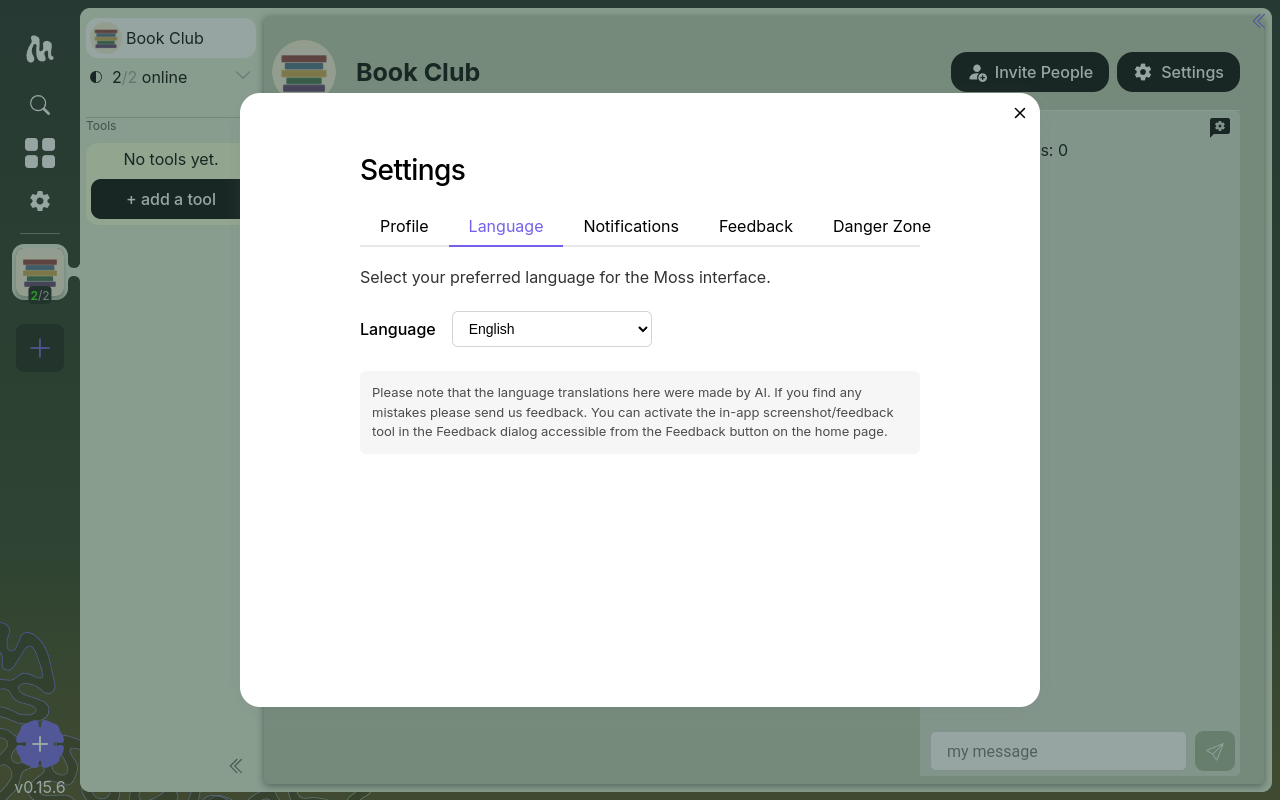
The list reflects what's been translated so far; more languages are added over time.
Notifications
Sound settings for incoming notifications — a master toggle, a volume slider, per-urgency level sounds, and custom-sound uploads.
See Notification Sounds for the full breakdown of the urgency levels and which one surfaces where.
Feedback
A way to send design feedback (with screenshots, if you like) from inside Moss while it's under active development. End users can leave this tab alone; it's mostly here for testers and reviewers.
Danger Zone
Backup and restore your Moss data, override network configuration, and — if you really mean it — factory-reset everything. The actions on this tab are the ones with the fewest undos, so it has its own dedicated page.
See Danger Zone for what each action does, what gets destroyed, and what's recoverable.
Moss Settings vs. Group Settings
A common source of confusion: Moss has two gear icons, and they go to different places.
- Moss Settings — the gear in the left sidebar. Preferences for the app itself: your default profile, language, notification sounds, your data. Applies across every group.
- Group Settings — the gear in the group's top bar (next to Invite People). Preferences for one specific group: its name and icon, the tools installed in it, its members, your per-group profile, and the group's own Danger Zone.
When a guide page says "open Settings," check the context. Most of the time you can tell from where the action lives (your global preferences vs. one group's setup); when in doubt, the breadcrumb above each section in this guide should help.