
Danger Zone
Moss has two Danger Zone tabs — one inside each group and one at the app level. They hold the actions that destroy or reshape data, mostly without an undo. This page walks through both so you can find the right action for the question "how do I…" and know what each one actually does before you click it.
A group's Danger Zone
Open a group, click Settings in the top bar, then the Danger Zone tab.
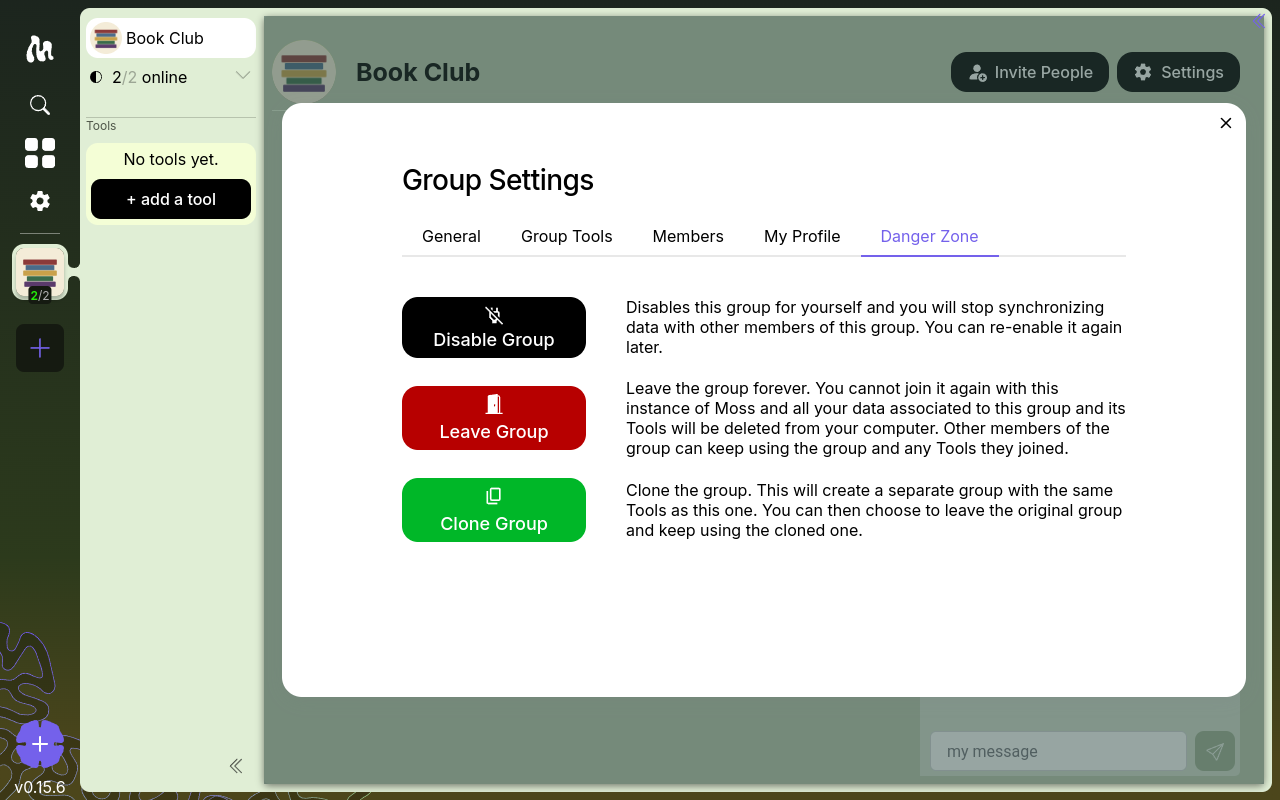
It has three actions, from least to most destructive.
Disable Group
Stops syncing this group on your device. Your data stays — you're just not running it. You can re-enable it any time.
Use this when you want a break from a group without losing anything, or when a group has noisy activity you'd rather not sync right now. Disabling refreshes Moss, so save unsaved work in other tools first.
Reversible. No data loss.
Leave Group
Permanently leaves the group, and deletes everything you have for it. Every tool you activated in this group is removed from your device, with all of its content for you.
The in-app warning is worth reading:
This will delete all your data related to this group and the Tools you joined therein from your computer. Other members of the group can keep using the group and any Tools they joined themselves.
So: irreversible for you, but the group continues for everyone else. You can't rejoin from this same Moss installation.
Not reversible. Local data destroyed.
Clone Group
Creates a new, separate group with the same tools installed — but no data is copied. Every tool starts fresh in the clone with its own empty network.
You pick a new name during cloning. If the source group is stewarded, you choose whether the clone is also stewarded (with you as the initial Steward) or unstewarded.
The most common use is changing governance — you can't convert a stewarded group to unstewarded (or vice versa) in place, but you can clone to the other type and migrate the group. Typical flow:
- Clone the group with the type you want.
- Share the clone's invite link with members.
- Once everyone's in the clone, leave the original.
Tool content doesn't migrate. Anything members want to carry over has to be re-created in the new group.
Moss's Danger Zone
Open Moss Settings (the gear icon in the left sidebar), then the Danger Zone tab.
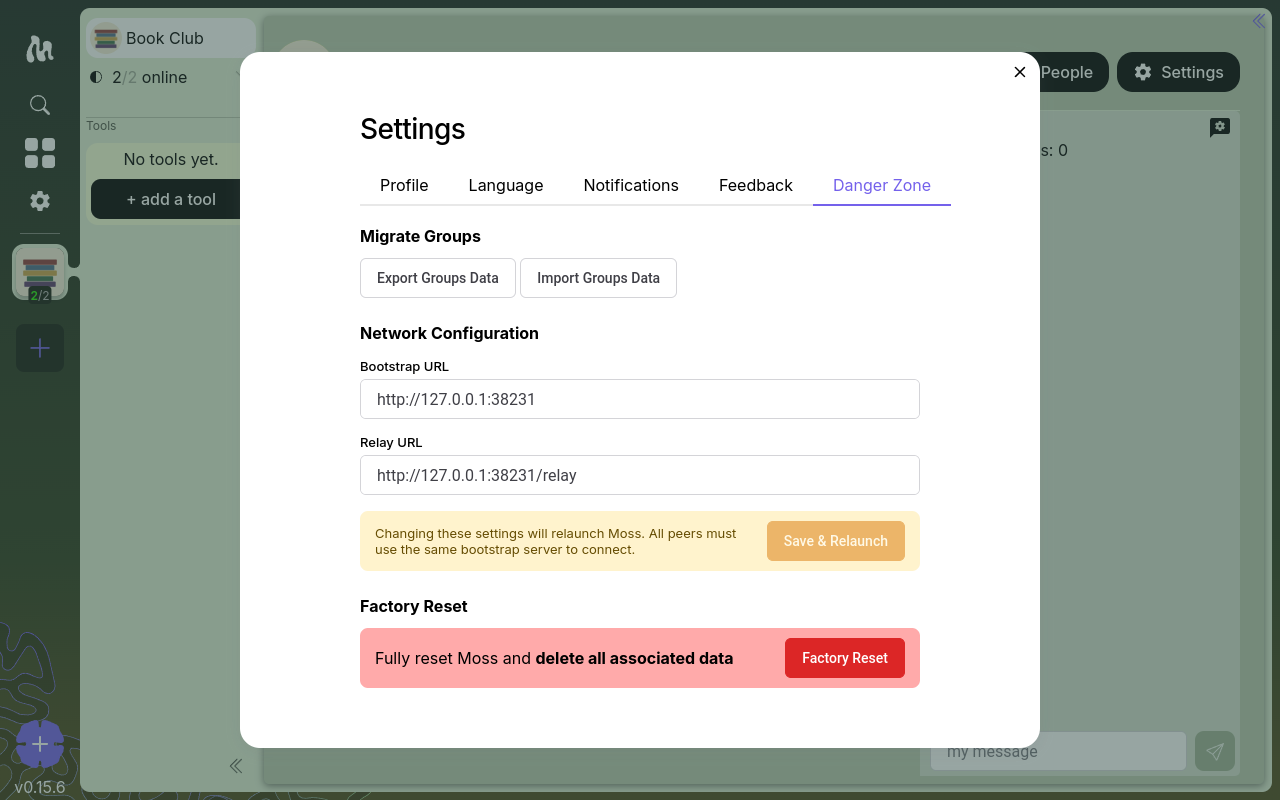
These actions operate on your whole Moss installation, not on any one group.
Export Groups Data
Saves a backup file containing your groups and their data. Run this before any other action on this tab. It's the only way to recover from a Factory Reset, and it's useful if you're moving Moss to a new machine.
Import Groups Data
Restores from a previously-exported backup. Each group is re-joined; conflicts are handled cleanly (groups you already have are left as they are). Moss reloads after import.
Network Configuration
Override Moss's default bootstrap and relay URLs.
Advanced — leave alone unless you know you need it. Bootstrap and relay servers are how peers discover and connect to each other on Holochain. The defaults work for groups using moss.social's infrastructure. Custom URLs are useful for testing, self-hosted infrastructure, or air-gapped setups.
Two things to know if you change these:
- All members of a group must use the same bootstrap URL to find each other. If only you change it, you'll lose connectivity with everyone else.
- Changing these settings relaunches Moss.
A Reset to Defaults button appears once you've overridden anything, so this isn't a one-way trip.
Factory Reset
Fully resets Moss and deletes everything: every group, every tool, your profile, all activity, all settings. Only an Export backup can bring any of it back.
Use only when you mean it — typically when starting completely over, troubleshooting on instruction from support, or wiping a shared machine.
Not reversible.
A practical safety habit
If you're about to do anything on either Danger Zone tab beyond Disable Group: open Moss's Danger Zone first and Export Groups Data. Backups don't cost anything, and they're the only way back from the actions on this page that don't have an undo button.