
The Pocket
The Pocket is your personal holding area for assets. Think of it as a clipboard that works across every tool and every group — you put things into it in one place and take them out somewhere else.
The Pocket is what makes Moss feel composable in everyday use. It's how a document from one tool ends up linked inside a chat message in another.
What's an asset?
An asset is anything one of your tools creates and can point to: a document, a chat thread, a task card, a calendar event, a whiteboard. Every asset has its own address — a Weave URL — so it can be referenced from anywhere, the same way a web page has a URL.
You don't have to think about Weave URLs directly. The Pocket handles them for you.
Opening the Pocket
There are two ways to open the Pocket:
- Press Alt + S, or
- Click the Pocket icon in the left sidebar.
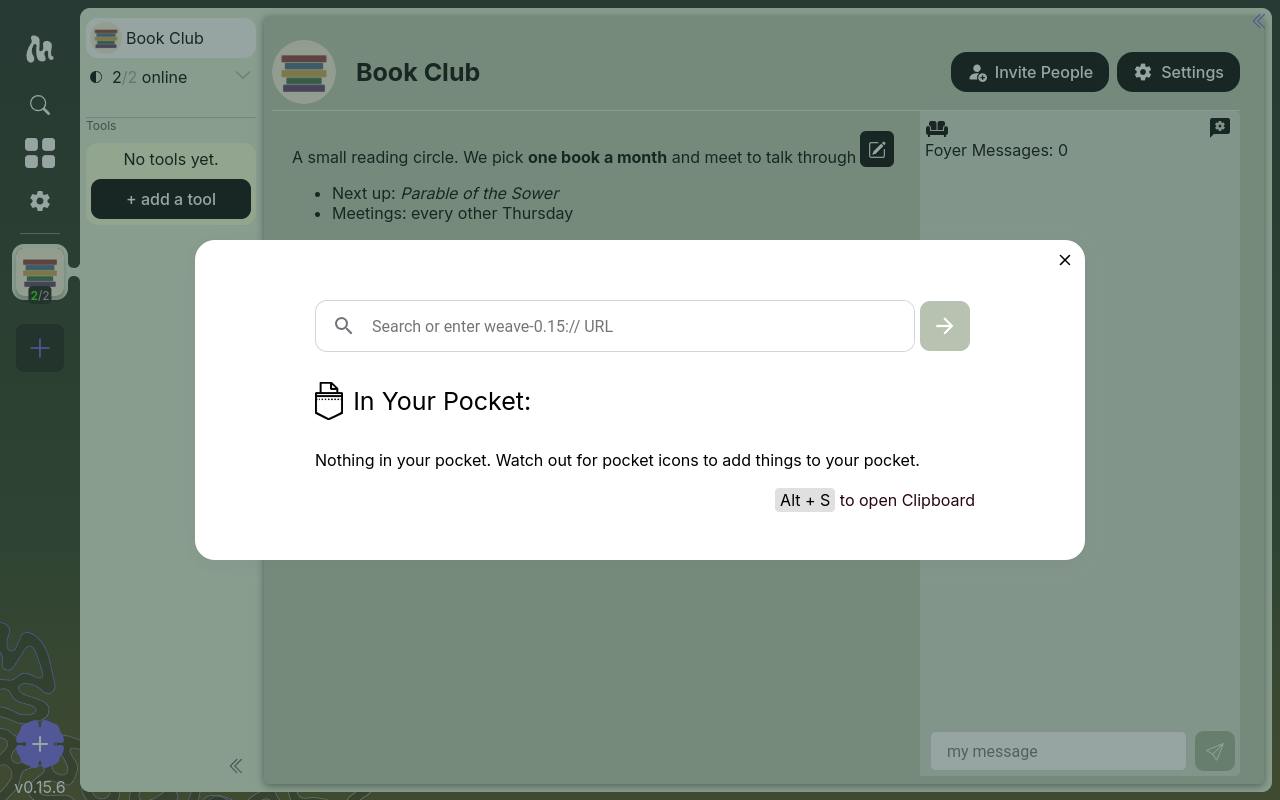
A fresh Pocket is empty — it fills up as you add things.
Putting things into the Pocket
Watch for the Pocket icon on assets throughout Moss. Wherever you see one — in a tool, on an asset you're viewing — clicking it adds that asset to your Pocket.
The Pocket also has a Recently created section. Whenever you make something new in a tool, it shows up there automatically, so you can grab it without hunting for it.
Using assets from the Pocket
Open the Pocket and you can:
- Open an asset — click it to jump straight to it, wherever it lives.
- Copy its link — copy the asset's Weave URL to share or paste elsewhere.
- Drop it into another tool — this is the important one. Many tools accept an asset from your Pocket, so a chat message can reference a specific document, or a task card can point at a calendar event. This cross-tool linking is the Weave Interaction Pattern in action.
What a tool will accept depends on the tool. Not every tool can link to every kind of asset.
The Pocket is yours, and it's global
- The Pocket spans all your groups and all your tools — it isn't scoped to one group.
- It lives on your device. It's personal: other members of your groups have their own Pockets.
- Items stay in the Pocket until you remove them. Use Clear Pocket to empty it.
Next
- Adding Tools — where assets come from