
Peer Status
Moss groups sync peer-to-peer. Knowing who's online — and what that means for your data — is part of using a group day-to-day. This page covers the status indicators you'll see, how to read the "online" counter, and what to do about a member you'd rather not see in the list.
Where status appears
Status indicators live in the peer panel of a group's sidebar. Click Your Peers in the left side of the group view to expand it. Each member's row shows their avatar, name, role, and a coloured dot for their current status.
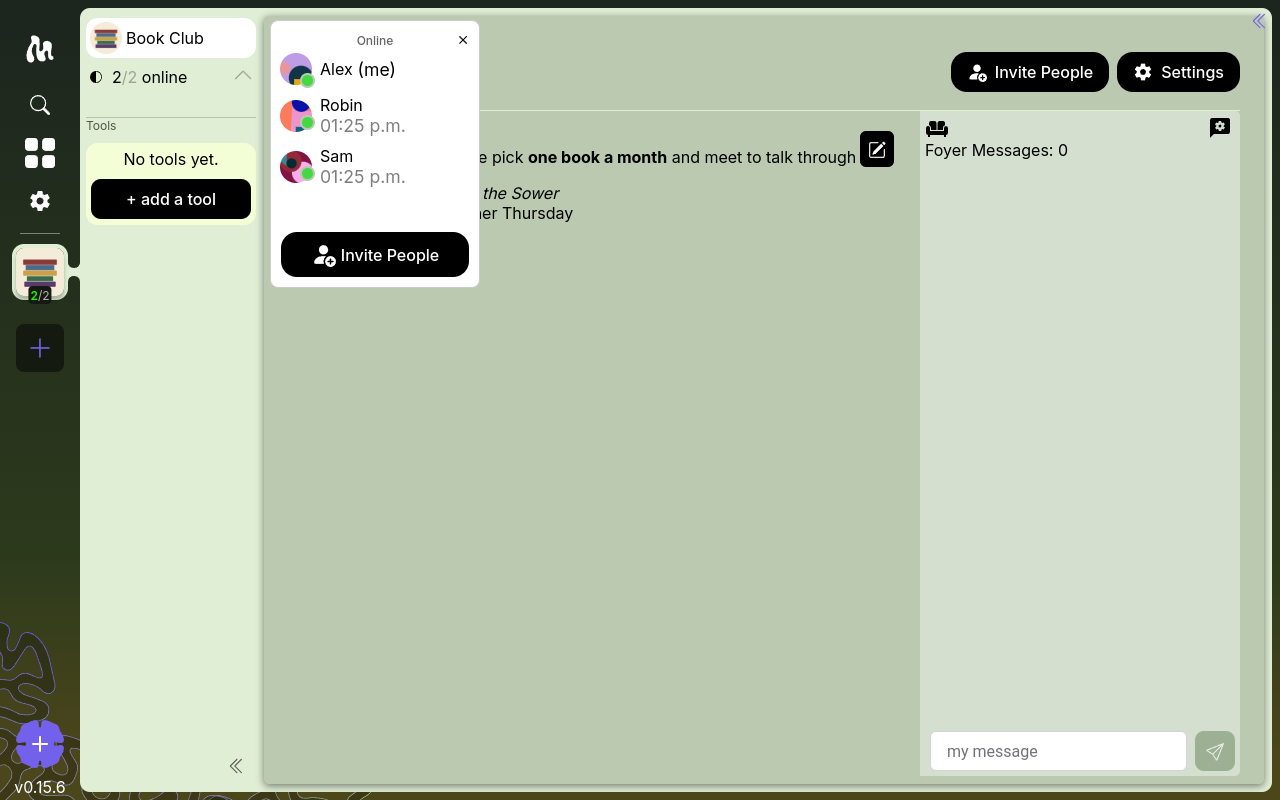
The collapsed sidebar doesn't show per-member dots — only a compact "X/Y online" counter next to the panel button.
The three statuses
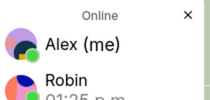
Each peer row shows the member's avatar with a small dot — that's the status indicator:
- Online (green dot) — the member is running Moss and responding right now.
- Idle (yellow dot) — Moss is running for them, but they haven't interacted with it for the last few minutes. Their device is still connected.
- Offline (no dot, faded row) — no recent response. They might be away, asleep, or simply not running Moss.
A member only counts as online in the "X/Y online" tally if they're online or idle — both are still reachable.
"X / Y online"

The compact counter you see in the group's left sidebar shows how many peers you can reach right now:
- X — how many other members are currently online or idle.
- Y — how many other members the group has in total.
You're not counted — it's "peers I can reach right now" over "peers in this group besides me." Click it to expand the full peer panel.
Sync expectations
Moss groups don't have a central server doing background sync. Data moves between devices when at least two of them are online together. A few implications worth knowing:
- Activity from offline members shows up when they come back. If they posted while everyone else was offline, no one sees it until they're online with at least one other member.
- A fresh join finds nothing if nobody's online. When you join a group and no peers are reachable, Moss tells you so directly: "No peers found yet to fetch the group's meta data. Ask one of the members of this group to launch Moss so that you can start synchronizing with them." Once any current member opens Moss, sync begins.
- Eventual consistency, not instant. Even with two online members, sync takes a moment — especially for older history. Give it a beat.
Headless Nodes
Some groups run always-online infrastructure — Moss instances on a server with no UI, kept up so the group's data is always reachable. The peer panel lists these separately under Headless Nodes. They have no timezone (they aren't a person), and they can't be hidden.
If your group has one running, you won't often hit the "nobody online" problem.
Hiding a member
You can hide any group member from your own peer panel. This is purely a personal preference — it doesn't affect what other members see, it doesn't remove them from the group, and it doesn't delete anything.
Two ways to hide someone:
- Right-click on their row in the peer panel and choose Hide agent, or
- Click their row to open their profile dialog, then click Hide in the top-right.
What changes once a member is hidden:
- Their row disappears from the main peer list into a collapsed Hidden section at the bottom.
- Moss stops tracking their online status — they won't appear in the "X / Y online" counter for you anymore.
- Their incoming signals are ignored locally (you won't see status notifications about them).
To unhide, expand the Hidden section, click the member, and choose Unhide from their profile.
🚧 Screenshot of hide/unhide UI (member profile dialog with the Hide button) to come — requires multi-agent capture.
The list of who you've hidden is per-group and stays on your device. Other group members never see who you've hidden.