
Roles & Stewards
Every Moss group has a governance model — a decision, made once when the group is created, about who is allowed to change the group. There are two models, and the choice is permanent.
What's described here is a deliberately minimal first pass at governance in Moss. It covers the essentials — who can change a group — and not much more. Richer, more flexible governance is planned; expect this area to grow.
The two group types
When you create a group, you pick one:
Stewarded — the group has designated caretakers. The creator becomes the Progenitor, and they (plus anyone they appoint) are Stewards. Everyone else is a Member. Only Stewards and the Progenitor can change the group's setup.
Unstewarded — there are no roles. Every member can do everything: edit the group, add and remove tools, invite people. This suits small groups of equals where ceremony would just get in the way.
You make this choice in the Create Group dialog (see Creating a Group). It is baked into the group and cannot be changed later — if you need the other model, you create a new group.
Roles in a stewarded group
Progenitor — the person who created the group. There is exactly one, it is assigned automatically, and it is permanent: it can't be transferred or revoked.
Steward — a caretaker appointed by the Progenitor (or by another non-expiring Steward). A group can have any number of Stewards.
Member — everyone else. Members participate fully in the group's tools and content; they just can't change the group's structure.
What Stewards can do that Members can't
In a stewarded group, these actions are limited to the Progenitor and Stewards:
- Edit the group's name and icon
- Invite people to the group
- Add, remove, and archive tools, and change tool settings
- Appoint other Stewards
Members see these controls greyed out or hidden. Everything else — using tools, creating and viewing content — is open to all members equally.
Seeing who holds which role
Open the group's Settings (the gear button), then the Members tab. Every member is listed with their role: Member, Steward, or Progenitor. This is visible to everyone in the group, not just to Stewards.
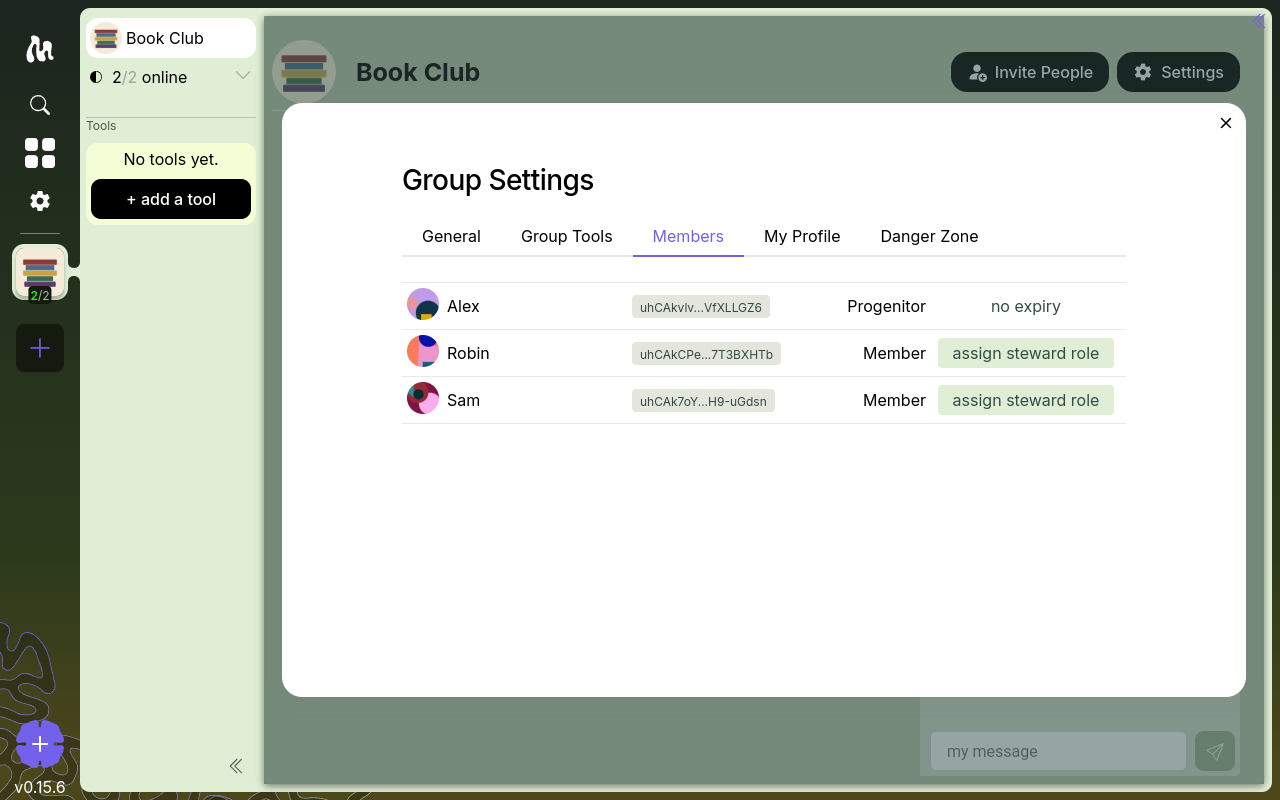
Appointing a Steward
From the Members tab, a Steward or the Progenitor can promote a member:
- Find the member in the list and click assign steward role.
- Choose how long the role lasts:
- Until a date — a time-limited stewardship that expires on its own. It can be extended before it lapses.
- Forever — a permanent role with no expiry.
- Confirm. You will be asked to acknowledge that this cannot be undone.
Stewardship can't be revoked
This is the important, easy-to-miss part: there is no "remove steward" action.
- A time-limited steward role simply expires on its date — and can be extended before then.
- A permanent steward role stays permanent. There is no way to take it back.
So appoint permanent Stewards deliberately. If you are not sure, give the stewardship an expiry date — extending it later is easy; undoing a permanent grant is impossible.
Next
- Creating a Group — where the group type is chosen
- Inviting Members — a Steward-gated action